
You can download the instructions in pdf as well to your desktop.
HOW TO INSTALL GROUPFUNNELS
- Installing GF Chrome Plugin
- Setting up the Google Spreadsheet
- Approving Member Requests
- Members Area
Some things to keep in mind:
- GroupFunnels works on PC and Mac with Chrome browser only.
- It does not work on cell phones.
- You MUST use the same email address you used to purchase Group Funnels
(or it most definitely will not work) - Make sure you join the Group Funnels FB group and the Member Area
- Need help? Talk to Geeff, our Support Bot! bit.ly/groupfunnelshelp
Install GF chrome plug in to your Chrome Browser
Click this link to get your GroupFunnel Chrome extension:
https://chrome.google.com/webstore/detail/group-funnels/ogcngjhkjiafdgchbfhanflaebmlifhf

Click ADD TO CHROME—that easy!
SETUP YOUR GF
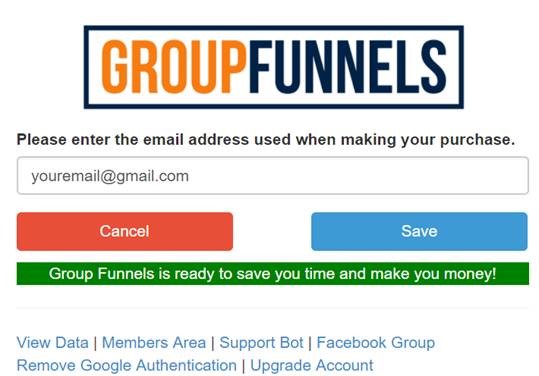
Enter the email you signed up with (MUST be the same email)
Click on SAVE (the blue button)
You should see a green stripe. Green means GOOD TO GO
If you see red…make sure
- You did not typo
- You are using the same email you used to purchase the plugin
CREATE YOUR GOOGLE DOCS SHEET
You need to create the spreadsheet you will PUSH the data to.
Name each column (or copy and paste from the spreadsheet template in the group.)
You will find the spreadsheet header template in the group in the Files section on the left.
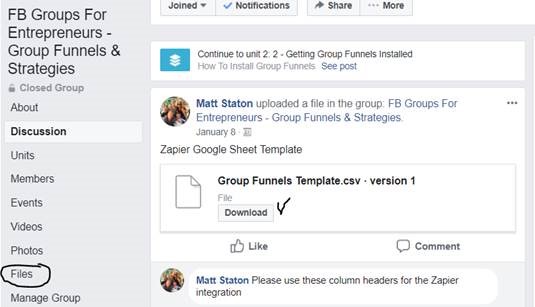

Name your sheet to save it – probably naming it the name of your group would be a good idea if you will be using it for multiple groups for easy management of multiple groups and sheets.

COPY the spreadsheet URL:
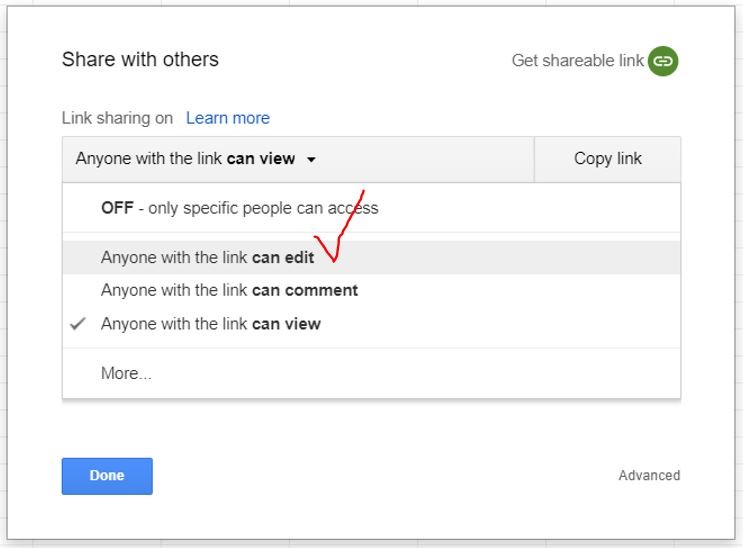
Make sure you choose SHARE the link as by default it is set to VIEW
Approving Member Requests
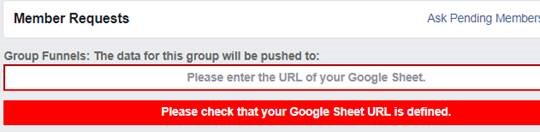
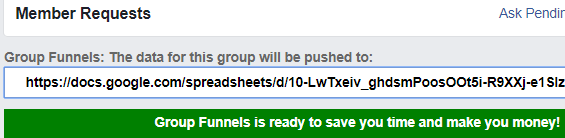
Go to your group and click on the MEMBER REQUESTS section.
You will you will see red until you enter the url into the field.
You need to PASTE the URL you just copied into the field..
SUCCESS!!!
As soon as you enter the url, you will see SUCCESS—click OK
You will now see GREEN.
TEST IT:
Approve ONE person
Click on the GF icon on your browser
Click on VIEW DATA (You should see the person you just approved)
Click the green PUSH TO GOOGLE SHEET button
You will see SUCCESS pop up.
Go check your Google Sheet that corresponds with the group you created the spread sheet for.
You will see they have populated the Google sheet
It has passed and is working properly.
You can now approve away!